1. Connect it
Run this once in your terminal:
claude mcp add --transport http dailies https://dailies.design/mcpThen run /mcp and pick dailies to sign in through your browser. There are no keys to copy. Other apps are on the MCP setup page.
2. Open your Project
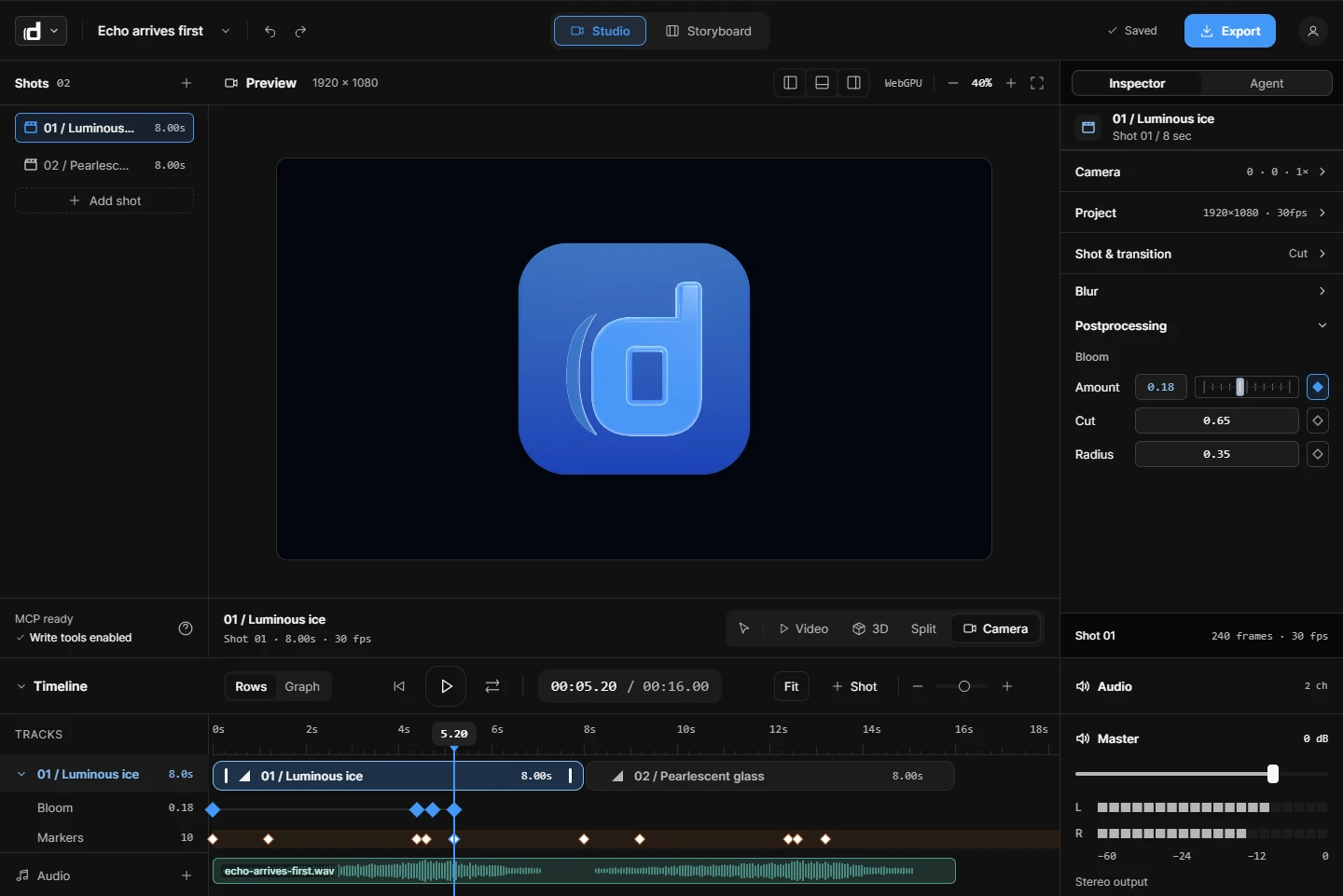
Renders and previews run in a Dailies editor tab, so keep one open in Chrome or Edge. You will see the edits happen on your own screen. Ask Claude Code to call get_stage_health if you want to check it can see the tab.
3. Plan before it builds
Give it the job and your real assets, and ask for a plan first:
Plan a 20 second launch video for our new changelog feature on the Storyboard. Use the screenshots in this Project. Do not build anything yet.Read the cards and change them. A few minutes here saves far more later. See how to plan a launch video.
4. Let it build the Shots
When the plan is right, ask it to build one Shot. Claude Code can render frames and filmstrips to look at its own work and fix what reads wrong. Build one Shot well before you ask for the rest, because the first one sets the style.
5. Direct it like an animator
Specific notes get better results than general ones:
- “Make the reveal slower and land the card on the beat.”
- “Hold the logo for another second before the cut.”
- “The second callout comes on too early. Delay it until the camera stops.”
Everything it makes is ordinary layers and keys, so you can also drag the key yourself.
6. Stay in control
Each workspace has an “AI can edit” switch. With it off, connected apps can read but not change anything. Comments work too: pin a note on a moment, and your AI can read and reply to it. See motion graphics with AI for what else it can do.
Try Dailies
Dailies is in private beta, so you need an invite. Sign in with yours, or ask for one there.